5. Third party dependencies
For all submitted plugins that are using other libraries. We require the use of vcpkg for installing and building these.
Why should I bother?
When submitting a plugin to bakkesplugins.com for review. The review process involves a human beeing reading every single line of the code you've submitted.
Since we don't accept pinky promises on whether or not there's any 'surprises' in the library code you've attached. Every line of code submitted has to be verified.
In the past this involved scouring the web for the official source and doing a file diff to verify nothing had changed. This was tedious, booring and error prone - Leading to no one wanting to do the job.
To make the review process faster and more managable. We now therefore require all plugin dependencies to be fetched from the dependeny manager vcpkg.
Get started with vcpk
Follow these steps to install and integrate vcpkg with visual studio.
Step 1: Install vcpkg
Just follow the install instructions from microsoft https://vcpkg.io/en/getting-started
Step 2: Add visual studio integration
This should have already been explained in the installation guide from step 1.
Simply run this command in the same folder as where you installed vcpkg vcpkg integrate install
Step 3: Define dependencies
Create a file named vcpkg.json in the root of your project with the following content. This will be a the starting point for defining your dependencies.
{
    "$schema": "https://raw.githubusercontent.com/microsoft/vcpkg-tool/main/docs/vcpkg.schema.json",
    "dependencies": []
}
You can find the packages available on vcpkg here: https://vcpkg.io/en/packages.html
For more advanced scenarios read the documentation for the manifest file here: https://learn.microsoft.com/en-us/vcpkg/users/manifests
This is a example for a vcpkg.json file that would pull and build nlohmann, eventpp websocketpp and cpr:
{
    "$schema": "https://raw.githubusercontent.com/microsoft/vcpkg-tool/main/docs/vcpkg.schema.json",
    "dependencies": [
        "nlohmann-json",
        "eventpp",
        "websocketpp",
        "cpr"
    ]
}
Step 4: Configure visual studio
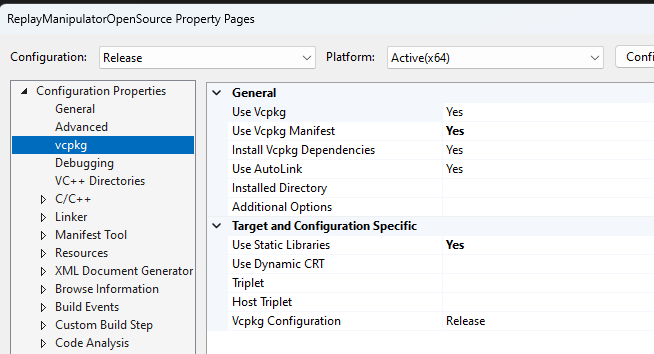
You should now go into your project properties and configure vcpkg. You should now have a new section named vcpkg Go here and set Use vcpkg Manifest to Yes. Also set Use Static Libraries to Yes (see attached screenshot)
Step 5: gitignore
optionally you could(you really should..) add vcpkg_installed/ to your .gitignore file
Step 6: Test it out
When you build your project in visual studio for the first time, vcpkg will now download and build your dependencies.
TLDR summary
- Install vcpkg
- Integrate vcpkg with visual studio
- Add manifest file with dependencies
- Tell visual studio to use vcpkg manifest and to link statically
- Success
Notes:
The Imgui that bm uses is not on vcpkg. It's fine to use the files in the sdk or from the template directly. Same with fmt (but pulling it from vcpkg is preferred)